
Decky Loader for Steam Deck: Features and Plugins
Decky Loader is a free, open-source homebrew plugin loader for the Steam Deck that lets you customize Gaming Mode with community-made extensions. Depending on the plugins you install, you can change interface themes, access additional system controls, display game compatibility information, and add useful shortcuts.
What Is Decky Loader?
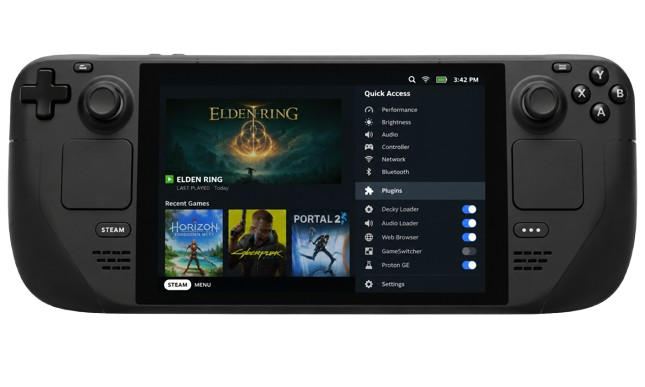
If you’ve been asking “what is Decky Loader” — an app, a mod, something else entirely — the short answer is: it’s a framework, not a feature. Decky Loader is a homebrew plugin loader: a small piece of community software that runs alongside SteamOS and provides a common framework for plugins — optional add-ons from independent developers, each supplying one specific feature. The loader itself ships with no plugins and adds no features of its own; its job is to load, manage, and display whatever you choose to install. That distinction is the key to everything on this page: Decky Loader is the stage, plugins are the performance.
Technically, the loader integrates with the Steam Deck’s interface by injecting React components into the Steam UI and running plugins’ background scripts, so everything appears inside the familiar Gaming Mode menus rather than as separate apps. The project is developed openly by the Steam Deck Homebrew community and released under the GNU General Public License v2.0, while plugins come from many independent developers and are not automatically endorsed by the core team.
What Can You Do with Decky Loader?
Every capability below comes from a plugin, so choosing well matters more than installing widely. The table after these sections matches common goals to example plugins and — most importantly — what to check before installing each one. These are examples, not guarantees of current compatibility or maintenance; for full comparisons, see our best Decky Loader plugins.

Customize the Steam Deck Interface
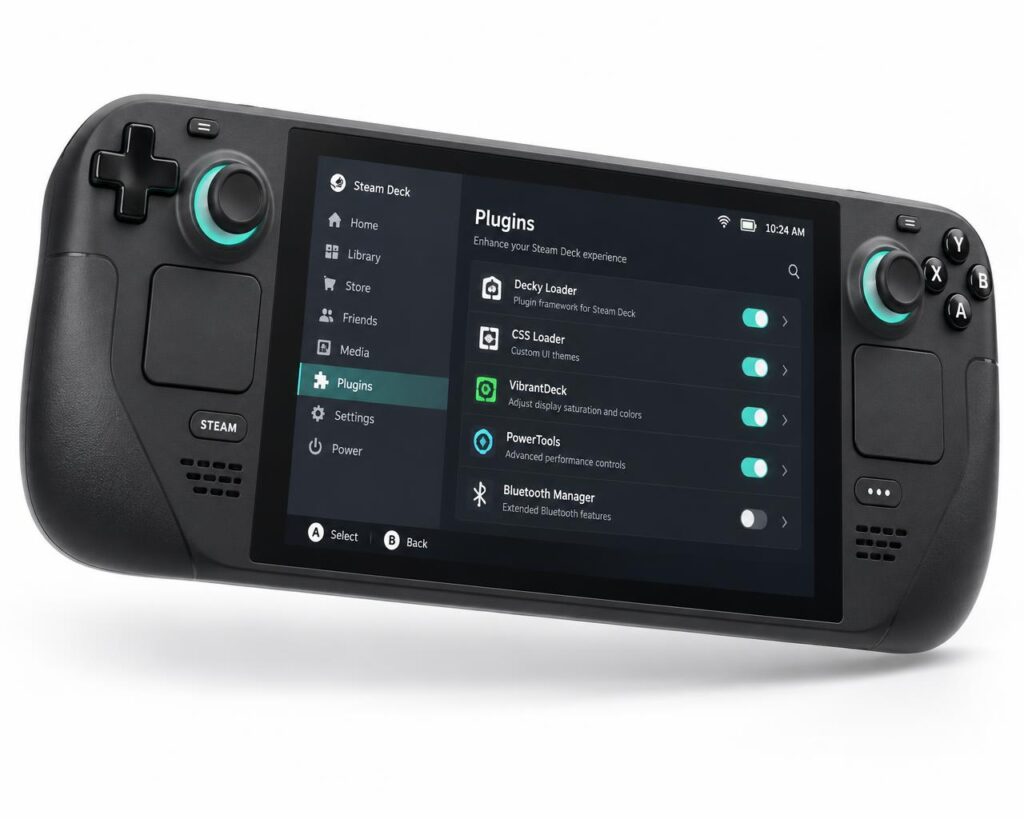
Visual customization plugins change selected aspects of the Steam Deck’s appearance: menu themes, system sounds, and boot or suspend animations. CSS Loader, Audio Loader, and Animation Changer are the well-known examples. Because these modifications interact with Steam’s user interface, check a plugin’s compatibility notes before applying changes — especially right after a SteamOS update. For a deeper walkthrough, see the CSS Loader customization guide.
Access Additional System Controls
Some plugins expose settings SteamOS doesn’t surface in Gaming Mode, such as Bluetooth device management or deeper CPU and power controls. PowerTools is the classic example, offering processor-level options that influence performance characteristics and power draw. Treat these settings with respect: a control you don’t understand can raise power consumption, increase heat, or make games less stable. Read the plugin’s documentation first, and remember that available controls vary between plugins and hardware.
Enhance Your Game Library Experience
Library-focused plugins add supplementary information around your games: ProtonDB Badges surface community compatibility reports, HLTB for Deck shows estimated completion times, and DeckFAQs can pull up game guides. Each feature depends entirely on its plugin’s data sources, so coverage differs from game to game.
Add Useful Gaming Utilities
Smaller utilities streamline everyday tasks without leaving Gaming Mode — checking for Flatpak updates, refreshing game artwork from SteamGridDB, or showing your Discord status, to name a few. Each utility has its own feature set, update rhythm, and level of support, so check its documentation and recent maintenance before relying on it.
Quick plugin-selection reference:
| Your goal | Example plugin | What it does | Check before installing |
|---|---|---|---|
| Change the look of Gaming Mode | CSS Loader | Applies community themes to menus | Theme compatibility with your SteamOS version; theme author activity |
| Reach deeper system settings | PowerTools | Exposes CPU and power controls | Understand each setting first; read the plugin docs; confirm recent updates |
| See game compatibility at a glance | ProtonDB Badges | Shows community compatibility reports | Data coverage for your games; maintenance status |
| Add everyday conveniences |
SteamGridDB FlatpakUpdater |
Artwork refresh / update checks | What permissions it requests; who maintains it |
Examples only — not a promise that any plugin works on your setup today. Evaluate every plugin on four questions: does it support your SteamOS version, is the documentation clear, who maintains it, and when was it last updated?
How Does It Work?
As a plugin loader for the Steam Deck, Decky Loader lives inside Gaming Mode rather than running as a separate app. The loader supplies the interface and background runtime; each plugin contributes its own screens and functions within it.
Quick Access Menu
Community Plugins
Extend Its Features
Decky Loader Compatibility and Requirements
Decky Loader on Steam Deck is intended for the stock SteamOS installation. It is not made for Windows or macOS, and the project states it has no plans to support them. The project’s own FAQ states that HoloISO and other third-party SteamOS distributions are not officially supported and may not work. For anything beyond the stock Steam Deck, treat compatibility as experimental and check the current project documentation first.
Compatibility has two layers that move independently. The loader itself is designed to stay installed between system updates and reboots — but SteamOS updates can still knock it out of the Quick Access menu. Re-running the installer on the stable branch is the documented first troubleshooting step in that situation, not a guaranteed fix for every problem. Individual plugins are the second layer: each has its own requirements and can break when SteamOS, the loader, or its dependencies change. The installer also offers a pre-release branch intended mainly for plugin developers; most readers should stay on the stable release.
through this checklist:
If Decky disappears from the Quick Access menu after an update, or a single plugin misbehaves while the rest work, those are different problems with different fixes: the first points at the loader, the second at the plugin. Our guide to fix Decky Loader issues after SteamOS updates walks through telling them apart. For installation prerequisites, see the Decky Loader installation guide.

Understanding the Decky Loader Plugin Ecosystem
The core project — the loader, the installer, and the official documentation — is built and maintained openly by the Steam Deck Homebrew team. Plugins are independent community extensions with their own repositories, documentation quality, and distribution methods. The developer, the source, and the documentation tell you how much trust and support to expect, so check them before installing. Nothing about a plugin’s presence in the ecosystem means the core team has audited or endorsed it.
SteamOS updates regularly change the interfaces plugins rely on, so maintenance history is one of the strongest quality signals: recent updates, compatibility notes for current SteamOS versions, and documentation that answers basic questions. A plugin whose dependencies change without a matching update can simply stop working. That is normal for homebrew software — and why the ecosystem rewards users who check a plugin’s health before depending on it.
What to Consider Before Using Decky Loader
Decky Loader is community homebrew software, not a Valve product, so weigh the trade-offs with clear eyes. Compatibility is a moving target: the loader, SteamOS, and each plugin evolve independently. Plugin quality and support vary enormously, and plugin-specific bugs are the most common source of odd behavior — which is why the permissions a plugin requests deserve scrutiny, especially for plugins that touch system settings.
On safety
The loader itself doesn’t modify Steam’s files, and removing Decky Loader is straightforward — but don’t confuse removing the loader with undoing everything. The official documentation warns that uninstalling an individual plugin removes only its plugin files, not any other files, settings, or changes that plugin may have created elsewhere. Understand what an advanced setting does before changing it, and review anything that asks for deep system access. For the full risk picture, see our Decky Loader safety and security risks page.
Frequently Asked Questions About Decky Loader
Short, direct answers to the questions new users ask most.